

Clarksville, TN — We clean our closets and garages in the spring and fall, hauling out what we no longer use. Our computers deserve the same attention, because they collect clutter too.
The difference is that computer clutter doesn’t just sit in a corner. Much of it starts every time the computer turns on, runs in the background and waits for security updates that never come. The easiest way to see how it piles up is to follow a few everyday upgrades, but first, a few precautions
Before You Start Cleaning
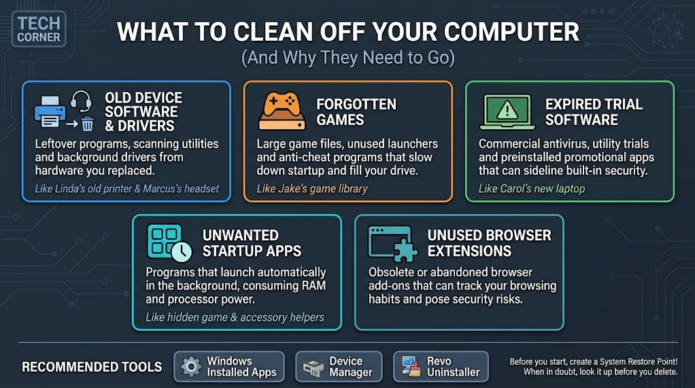
A little caution goes a long way. Back up your important files, then create a restore point by searching the Start menu for “Create a restore point.” If removing something causes a problem, you can roll the system back to how it was.
The most important rule is simple: if you don’t recognize something, look it up before you remove it. Some entries with unfamiliar names, such as Microsoft Visual C++ Redistributables and .NET components, are shared building blocks that other programs depend on. Those should stay.
Linda’s New Printer
When Linda’s old inkjet finally gave out, she brought home a new laser printer. She plugged it in, ran the setup download, and it printed perfectly. The old printer went to the curb.
Its software didn’t. When Linda installed that inkjet years ago, she got far more than a driver. The setup also added a scanning program, an ink-level monitor, an update checker and a utility that sent usage data back to the manufacturer.
All of it was still on her computer, still loading at startup and still looking for a printer that no longer existed. Once that model was discontinued, its software stopped receiving security updates, so any flaws it had stayed open.
Cleaning up after an old printer takes only a few minutes. Type “Add or remove programs” into the Start menu, which opens the Installed apps list in Windows 11. Search for the old printer’s brand and uninstall the programs tied to that model. If the new printer is from the same company, be careful to keep anything that belongs to it.
Next, open Settings, then Bluetooth & devices, then Printers & scanners, and remove the old printer from the list.
Finally, check for its driver. Right-click the Start button, open Device Manager and choose Show hidden devices from the View menu. Grayed-out entries are devices that aren’t currently connected. If the old printer appears, right-click it, choose Uninstall device and check the box to remove the driver if Windows offers it.
Use care in Device Manager. Leave alone anything listed under storage controllers, system devices or processors, along with anything you plan to plug in again, such as a flash drive or a phone you still use.
Marcus and the Crackling Headset

Marcus replaced his worn-out gaming headset with a new one from a different brand. The new headset came with its own app for lighting, microphone settings and virtual surround sound. So had the old one, and both apps installed their own audio drivers to make those features work.
Within a day, his sound started crackling. His microphone cut out in the middle of games, and some mornings the new headset didn’t show up at all. Marcus was ready to box it up and send it back.
The headset was fine. The old headset’s software was still running in the background, fighting the new one for control of his audio.
The fix was to uninstall the old headset’s app through Installed apps, then check Device Manager for leftover entries under Sound, video and game controllers and Audio inputs and outputs. After Marcus removed the grayed-out devices that belonged to the old headset and restarted his computer, the problems disappeared.
The lesson is worth making a habit: before you set up any new accessory, uninstall the software for the one it replaces.
Jake’s Game Library
Jake never met a holiday sale he didn’t like. Over a few years, he collected dozens of games across several stores. He played some for a weekend, finished a few and never opened the rest. Then his computer warned him that his drive was nearly full.
Modern games can take up 100 gigabytes or more each, so a dozen forgotten titles can fill a drive quickly. Games also bring more than game files. Every storefront, including Steam, the Epic Games Store, EA, Ubisoft and Battle.net, has its own launcher, and most of them start automatically with Windows. Jake had five running every time he turned on his computer.
Some online games also install anti-cheat software that runs with deep access to the system. In some cases, it stays behind after the game itself is gone.
Start inside each launcher, where uninstalling a game usually takes a single click in its settings. Then go back to Installed apps and look for leftover anti-cheat programs tied to games you’ve removed. If you no longer buy from a particular store, uninstall its launcher too.
Jake worried about losing the games he’d paid for, but there’s no need. Purchases stay tied to your account, so any game can be reinstalled whenever you want to play it again.
Carol’s New Laptop
Carol expected her brand-new laptop to be a clean slate. Instead, it arrived loaded with trial software, manufacturer utilities, promotional apps and games she never asked for. Among them was a 30-day trial of a commercial antivirus program.
When the trial ran out, Carol ignored the pop-ups asking her to subscribe, assuming the program would simply stop. Instead, it stayed installed, nagging her for payment while no longer fully protecting her.
An expired security program can remain registered as a computer’s main protection, leaving Microsoft Defender Antivirus, the free protection built into Windows, sidelined until the trial is removed. Running two security programs at once can also slow a computer down and cause conflicts.
If you don’t plan to pay for a security trial, uninstall it through Installed apps. Some security companies also offer a dedicated removal tool on their websites that cleans up what the standard uninstaller misses. Afterward, open Windows Security and select Virus & threat protection to confirm that Microsoft Defender is on.
While you’re at it, work through the rest of the preinstalled software. Keep anything from your computer’s manufacturer that handles updates, drivers or support, and remove the trials, promotional apps and games you’ll never use.
Windows Doesn’t Always Finish the Job
Add or Remove Programs has one big weakness: it relies on each program’s own uninstaller, and many of those don’t clean up after themselves. Folders, settings and registry entries are often left behind, sometimes along with background services that keep running.
That’s where Revo Uninstaller comes in. The free version has been a favorite of computer technicians for years. It runs a program’s normal uninstaller first, then scans your system for the files and registry entries that uninstaller missed and offers to remove them. It also creates a restore point automatically before it starts, which adds a welcome safety net.
Revo is especially useful for printer suites and headset apps like the ones Linda and Marcus left behind, which are notorious for leaving pieces scattered across a system. Its Hunter Mode helps with mystery software, too. It places a small target on your screen that you can drag onto a program’s window or icon to identify the program and uninstall it.
A paid Pro version adds features for stubborn cases, including a forced uninstall for programs whose own uninstallers are broken or missing, and the ability to monitor new installations so they can be removed completely later. For most home users, the free version is plenty.
When Revo shows you leftovers, review the list rather than deleting everything at once. If anything looks like it belongs to software you still use, leave it unchecked.
Why Leftover Drivers Matter
Of everything left behind, old drivers deserve the most attention. Drivers are the small pieces of software that let your computer talk to hardware like Linda’s printer or Marcus’s headset, and many of them run with system-level access to Windows.
That access is exactly what attackers look for. Security researchers have documented a technique known as “bring your own vulnerable driver,” in which an attacker uses a legitimate but outdated driver with a known flaw to take control of a system and switch off security software. Microsoft maintains a block list of known vulnerable drivers for this reason.
Windows 11 can help you find problem drivers. A security feature called Memory integrity protects the core of the system from malicious code, but old, incompatible drivers can prevent it from turning on. When that happens, Windows tells you exactly which drivers are in the way.
To check, open Windows Security, select Device security, then Core isolation details. If Memory integrity is off, try turning it on. Drivers that Windows lists as incompatible are often leftovers from old hardware, sometimes from a printer or accessory you got rid of years ago. Look up each name online to confirm what it belongs to before removing it.
The Programs That Start Without Asking
Even software worth keeping doesn’t always need to load the moment your computer starts. Game launchers like Jake’s are some of the worst offenders, but update checkers and helper apps from printers and accessories add up too.
Press Ctrl+Shift+Esc to open Task Manager, then select Startup apps. Right-click anything you don’t need right away and choose Disable. The program will still open when you want it; it just won’t start on its own.
Mac users can find the same list under System Settings, then General, then Login Items.
Don’t Forget Your Browser
The same kind of clutter builds up inside your web browser. Over the years, most of us add extensions for coupons, downloads, screenshots and countless other tasks, then forget about them.
Old extensions carry the same risks as old programs. Many are abandoned by their developers and stop receiving updates. Some are sold to new owners who use them to push ads or track browsing. Because extensions can see the pages you visit, a bad one can see a great deal.
To review yours, type chrome://extensions into the address bar in Google Chrome, edge://extensions in Microsoft Edge or about:addons in Firefox. Remove anything you don’t use or don’t recognize. Most people find they only need a few.
Finishing the Job
Windows also stores copies of older driver versions after updates. Once you’ve finished uninstalling, search the Start menu for Disk Cleanup, choose your main drive, click Clean up system files and check Device driver packages.
For more advanced users, Microsoft’s free Autoruns utility reveals everything that starts with Windows, including background services and drivers that never appear in Task Manager. It’s a powerful tool, so research anything before you switch it off.
Beware of “Cleaner” Programs
Search online for help with a slow computer, and you’ll quickly run into ads for registry cleaners, “PC optimizers” and automatic driver updaters. Many promise dramatic speed boosts after a free scan that turns up hundreds of alarming “problems.”
Be skeptical. Many of these programs do little of value, some use scare tactics to sell subscriptions, and some bundle the very kind of unwanted software this cleanup is meant to remove. Driver updaters can even install the wrong driver and create new problems.
The safer path is to stick with the tools covered here. Get drivers from Windows Update or directly from the manufacturer of your computer, printer, headset or graphics card. For anything beyond that, use well-established utilities from reputable developers.
Make It Part of the Routine
Spring and fall make natural reminders for a full cleanup, but the best time to tidy up is the moment something new comes home. When you unbox a new printer, headset or webcam, take five minutes to uninstall the software for the one it replaces. When you finish a game for good, remove it along with everything it brought along.
Prevention helps too. When installing new software, choose the “Custom” or “Advanced” option if one is offered, and uncheck any bundled toolbars, trials or extra programs before clicking Next.
A computer carrying only what it needs starts faster, runs smoother and gives attackers fewer ways in. And the next time a program offers to install a “free” extra during setup, you’ll know to say no.
Editor’s note: Neither Clarksville Online or the author has any direct or indirect financial interest in, or affiliation with, any of the companies or programs mentioned in this story. No compensation was received as a result of their inclusion.