


 Clarksville, TN – The final piece of staying safe online is the machine sitting right in front of you. You can lock down every account and learn to spot a con and still run into trouble if harmful software finds its way onto your own computer — usually with a small, unwitting bit of help from you.
The encouraging part is that most infections arrive through a handful of predictable doors, and once you know where those doors are, they are not hard to keep shut. And if you suspect something has already slipped through, there are clear signs to look for and sensible steps to take.
Only Install Software From Sources You Trust
The most common way people infect their own computers is by installing something they should not have, from a place they should not have trusted. The fix is a single steady rule: download software only from the maker’s official website or an official app store.
If you want a program, go straight to the company that makes it, or to the app store built into your device, rather than to whatever search result or pop-up happened to offer it first.
The reason this matters so much is that harmful software is very good at dressing up as the thing you actually wanted. A download from the wrong place can quietly carry a passenger you never asked for.
How Bad Software Sneaks In
It helps to recognize the usual disguises. Some sketchy download pages are covered in several large “Download” buttons, only one of which is real — the rest deliver something else entirely. Some installers slip in extra programs along the way, with the agreement to add them pre-checked and easy to miss if you click through quickly.
“Free” versions of software that normally costs money are a classic trap, because the price you really pay is whatever was bundled inside. And a pop-up warning that your computer is infected, or that you must update something immediately, is frequently the infection itself, wearing the costume of a fix.
The defense is the same calm habit from the rest of this series: slow down, and go to the source you trust rather than the one that came to you. When you install something, read each screen instead of clicking “Next” on autopilot, and uncheck anything extra you did not come for.
Warning Signs Your Computer May Already Be Compromised
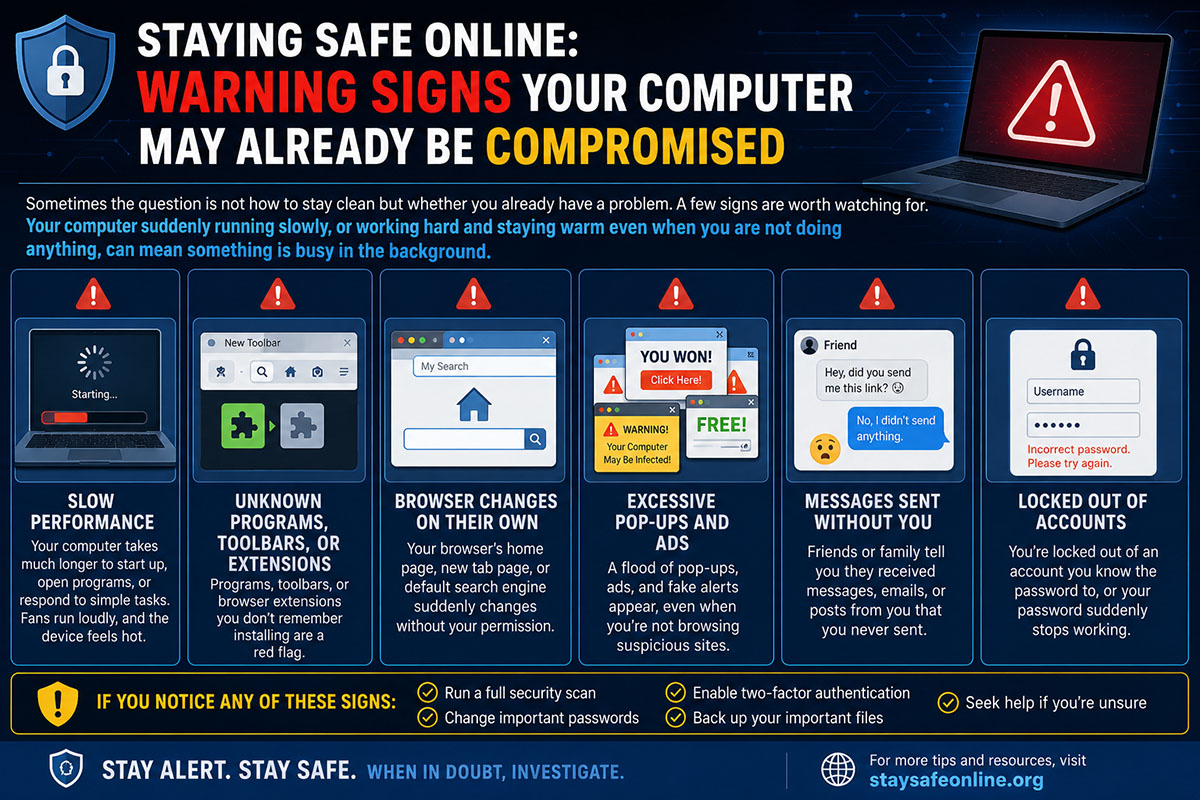 Sometimes the question is not how to stay clean but whether you already have a problem. A few signs are worth watching for. Your computer suddenly running slowly, or working hard and staying warm even when you are not doing anything, can mean something is busy in the background.
Programs, toolbars, or browser extensions you do not remember installing are a red flag, as is your browser’s home page or default search changing on its own. A flood of pop-ups, friends telling you they received messages you never sent, or being locked out of an account you know the password to — any of these is reason to take a closer look.
On Windows, the taskbar itself can offer an early clue. If you open Task Manager and watch the CPU and memory graphs shortly after starting up, with no programs open, usage should settle down and stay fairly low and steady. If it stays high or keeps jumping around for no clear reason — and nothing you recognize, like a Windows Update or antivirus scan, is running — that persistent, unexplained activity is worth investigating further. On a Mac, the Activity Monitor shows the same kind of information, though you do not need to be an expert to notice when something is plainly off.
It’s also worth scrolling through the list of running programs itself, on Windows or a Mac, looking for anything unfamiliar — odd names, random strings of letters and numbers, or programs you don’t remember installing. The catch is that real malware is often designed to disguise itself with a name close to a legitimate Windows or system process, so a clean-looking list isn’t a guarantee that nothing is wrong, and an unfamiliar name isn’t automatic proof that something is. This step is more about noticing something that looks plainly out of place than diagnosing the problem yourself — if anything gives you pause, that’s the point to run a proper scan or get help rather than trying to decide on sight.
The First Steps If You Think You’ve Been Hit
If you believe your computer has been compromised, a calm and orderly response does most of the work. First, disconnect the machine from the internet, which cuts off anything trying to talk to the outside world.
Next, run a full scan with reputable security software to find and remove what it can. Then, using a different device you trust rather than the one you are worried about, change the passwords on your important accounts — starting with your email, since so much else can be reset through it.
Turn on the second layer of login security from Part 2 wherever you have not already. Finally, keep an eye on your bank and email for anything you did not do, and act quickly if you spot it.
When to Stop and Get Help
There is no shame in handing this to someone who does it for a living, and sometimes that is the wise call. If money has moved, if an account you cannot recover is involved, or if you have done the steps above and still feel uneasy, take the machine to a trusted local technician. Paying for an hour of competent help is a small price next to the cost of guessing wrong on something that matters.
That is the whole of it. Across this series, the same quiet idea keeps returning: you do not have to be an expert, and you do not have to do everything at once. You only have to make yourself a harder target than the next person — check whether your information is already out there, lock your accounts, distrust the message or call that came to you out of nowhere, and be careful what you let onto your machine.
Each step is small. Together, they are enough.
Staying Safe Online Series
- Why Would Anyone Want to Hack Me?
- You Don’t Have to be a Tech Expert to Protect your Accounts
- If They Contact You First, Be Suspicious
- Staying Safe Online: Is My Computer Hacked? How to Tell, and What to Do
About This Series
The “Staying Safe Online” series on Clarksville Online is written to help local readers recognize and respond to common online safety and computer issues, drawing on the author’s professional background in computer repair, networking, and malware removal. It is intended as general education, not as personalized technical, legal, or security advice for any individual’s specific device, account, or situation.
Computer systems, software, and online accounts vary widely, and a step that resolves one person’s issue may not apply — or may not be appropriate — for someone else’s setup. Before making changes to your computer, accounts, network settings, or security software based on anything in this series, you should use your own judgment about whether it fits your situation, and consult a qualified professional if you’re uncertain.
Clarksville Online and the article’s author make reasonable efforts to provide accurate and helpful information at the time of publication, but technology changes quickly, and we cannot guarantee that every recommendation remains current or applicable to every device or system. Neither Clarksville Online nor the author can be held responsible for any loss, damage, data loss, account issues, or other consequences that may result from actions taken based on this content.
If you believe your device or accounts may already be compromised, or if a problem is urgent, we recommend contacting a professional computer repair service or your account provider’s official support channels directly, rather than relying solely on general articles like these.